# 📫 Tutos Thunderbird Mobile📱


# Configuration initiale (Thunderbird version 128 et supérieures)

Vous l'attendiez ? Ils l'ont fait ! Thunderbird est enfin disponible pour les smartphones Android. Basé sur le projet K-9 mail, sa mise en place est très facile et vous permettra de retrouver tous vos mails sur votre téléphone.

<p class="callout warning">Attention, pour utiliser la fonction d'import grâce à un QR Code il faut la version 128 de Thunderbird. La version est indiquée dans Aide puis A propos de Thunderbird.</p>

<table border="1" id="bkmrk-%C2%A0-%C2%A0-%C2%A0-premi%C3%A8re-%C3%A9tape" style="border-collapse: collapse; width: 100%;"><colgroup><col style="width: 50%;"></col><col style="width: 50%;"></col></colgroup><tbody><tr><td>


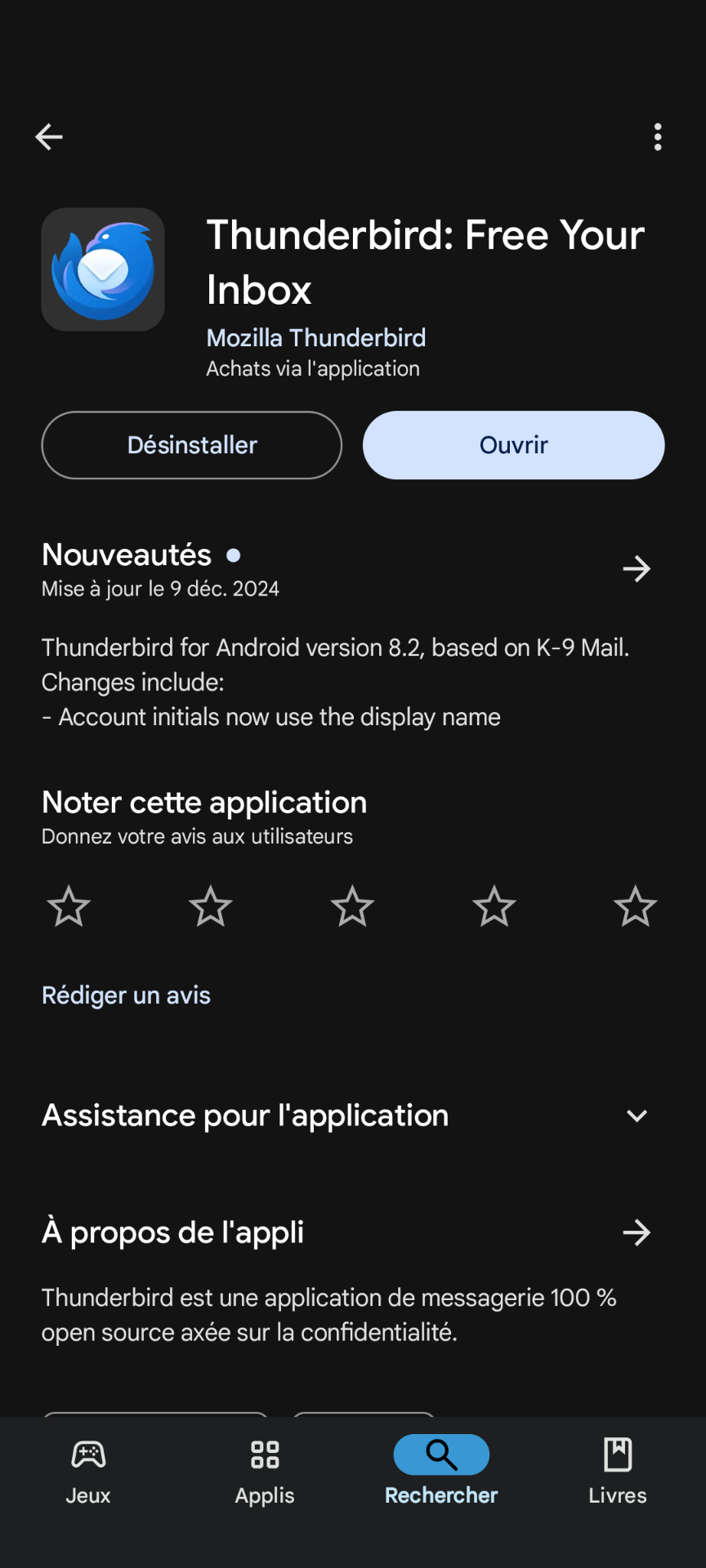
#### Première étape : télécharger l'application Thunderbird sur le Play Store 

</td><td>*Mobile*

[![rn_image_picker_lib_temp_18d60b8e-95ff-4594-9bd0-25d5085ea1c5.png](https://librairie.grap.coop/uploads/images/gallery/2025-03/scaled-1680-/rn-image-picker-lib-temp-18d60b8e-95ff-4594-9bd0-25d5085ea1c5.png)](https://librairie.grap.coop/uploads/images/gallery/2025-03/rn-image-picker-lib-temp-18d60b8e-95ff-4594-9bd0-25d5085ea1c5.png)

</td></tr><tr><td>


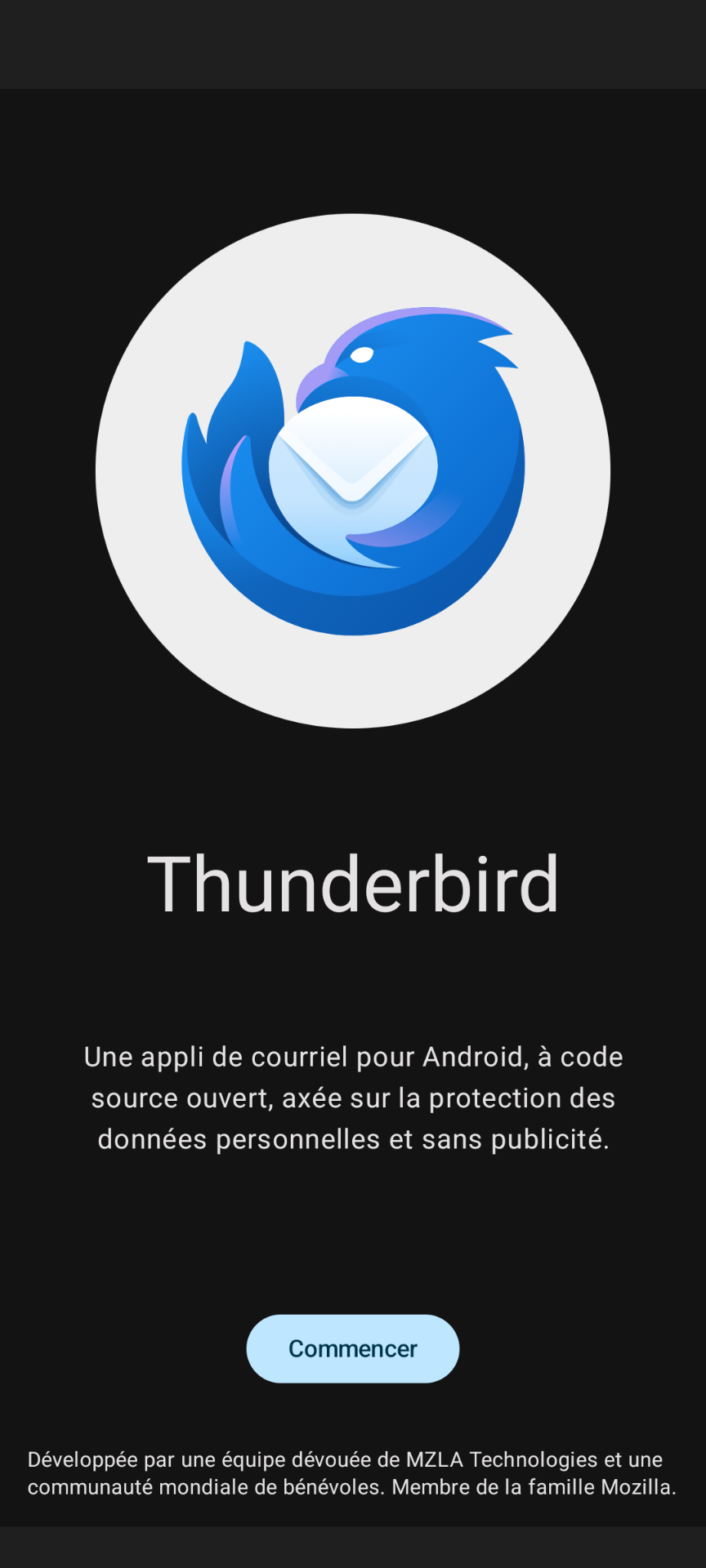
#### Lancer l'application et appuyer sur "Commencer"

</td><td>*Mobile*

[![rn_image_picker_lib_temp_0801b580-66c7-4c7f-96e7-17d4d6800386.png](https://librairie.grap.coop/uploads/images/gallery/2025-03/scaled-1680-/rn-image-picker-lib-temp-0801b580-66c7-4c7f-96e7-17d4d6800386.png)](https://librairie.grap.coop/uploads/images/gallery/2025-03/rn-image-picker-lib-temp-0801b580-66c7-4c7f-96e7-17d4d6800386.png)

</td></tr><tr><td>
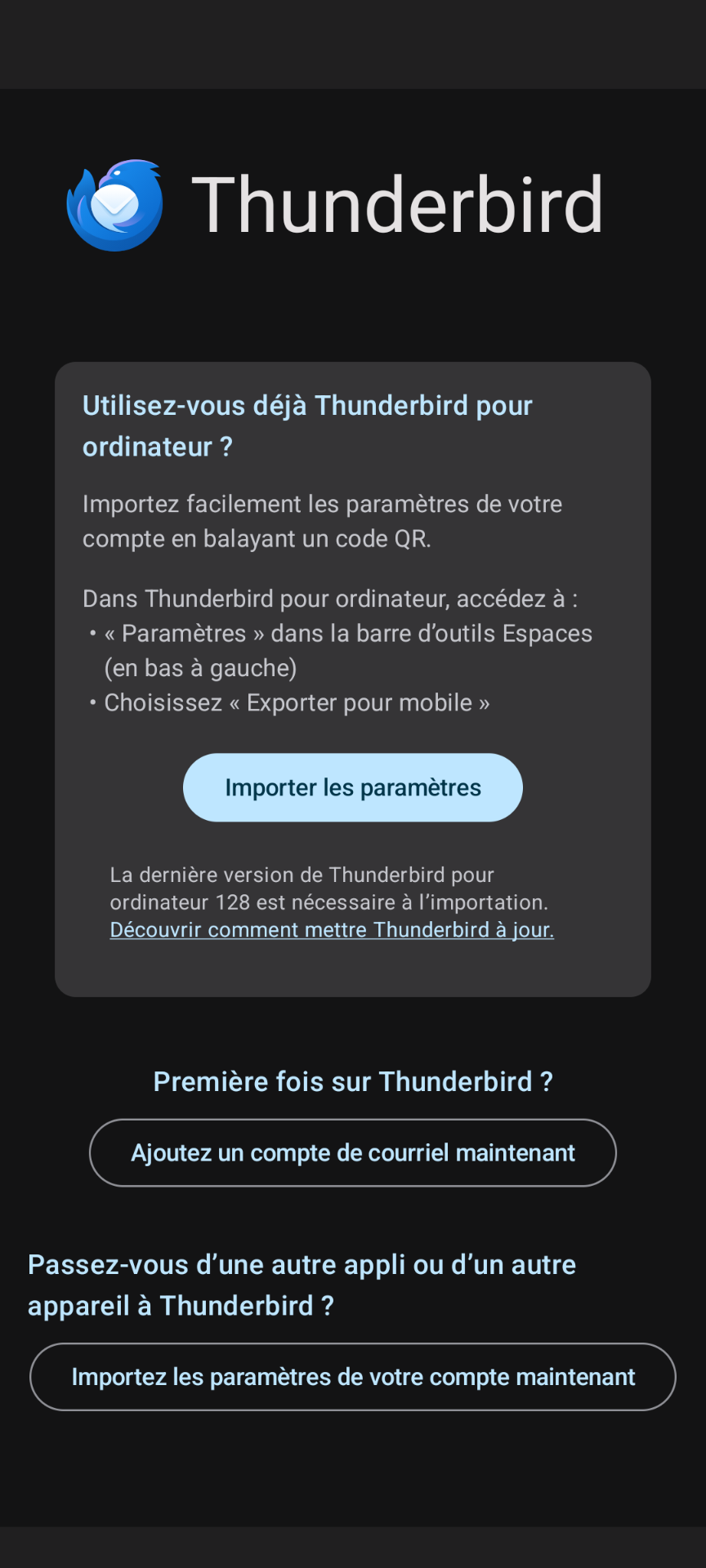
#### A l'écran suivant, on peut importer directement son ou ses comptes déjà présents sur son ordinateur, suivre les instructions en allant dans les Paramètres de Thunderbird sur son PC et en sélectionnant ensuite "Exporter pour mobile"

</td><td>*Mobile*

[![rn_image_picker_lib_temp_5b83f148-346a-4433-bb67-a336a5c22256.png](https://librairie.grap.coop/uploads/images/gallery/2025-03/scaled-1680-/rn-image-picker-lib-temp-5b83f148-346a-4433-bb67-a336a5c22256.png)](https://librairie.grap.coop/uploads/images/gallery/2025-03/rn-image-picker-lib-temp-5b83f148-346a-4433-bb67-a336a5c22256.png)

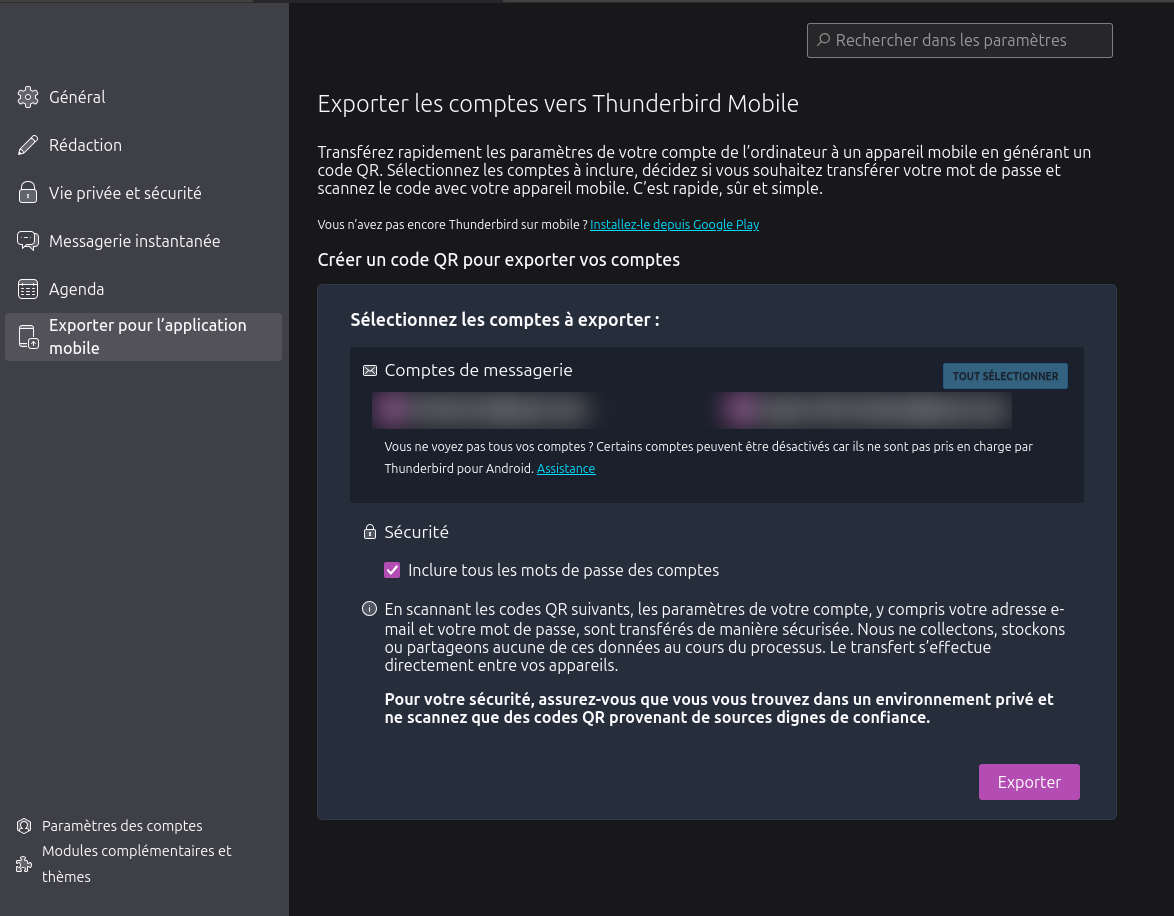
</td></tr><tr><td>#### Sélectionner le ou les comptes concernés, laisser la case "Inclure les mots de passe des comptes" cochée, et cliquer sur Exporter.

#### Thunderbird génère un QR Code qu'il faut scanner via l'application mobile Thunderbird.

</td><td>*Ordinateur*

[![tb.png](https://librairie.grap.coop/uploads/images/gallery/2025-03/scaled-1680-/tb.png)](https://librairie.grap.coop/uploads/images/gallery/2025-03/tb.png)

</td></tr></tbody></table>

#### Et voilà. Vos comptes de messagerie sont maintenant importés et vos mails disponibles sur votre téléphone Android !   

# Configuration initiale (Thunderbird versions antérieures à la version 128)

Vous l'attendiez ? Ils l'ont fait ! Thunderbird est enfin disponible pour les smartphones Android. Basé sur le projet K-9 mail, sa mise en place est très facile et vous permettra de retrouver tous vos mails sur votre téléphone.

<p class="callout warning">Attention, pour utiliser la fonction d'import grâce à un QR Code il faut la version 128 de Thunderbird. Cette page concerne les version antérieures et permet un paramétrage manuel.</p>

<table border="1" id="bkmrk-%C2%A0-%C2%A0-%C2%A0-premi%C3%A8re-%C3%A9tape" style="border-collapse: collapse; width: 100%;"><colgroup><col style="width: 50%;"></col><col style="width: 50%;"></col></colgroup><tbody><tr><td>


#### Première étape : télécharger l'application Thunderbird sur le Play Store 

</td><td>*Mobile*

[![rn_image_picker_lib_temp_18d60b8e-95ff-4594-9bd0-25d5085ea1c5.png](https://librairie.grap.coop/uploads/images/gallery/2025-03/scaled-1680-/rn-image-picker-lib-temp-18d60b8e-95ff-4594-9bd0-25d5085ea1c5.png)](https://librairie.grap.coop/uploads/images/gallery/2025-03/rn-image-picker-lib-temp-18d60b8e-95ff-4594-9bd0-25d5085ea1c5.png)

</td></tr><tr><td>


####  

####  

#### Lancer l'application et appuyer sur "Commencer"

</td><td>*Mobile*

[![rn_image_picker_lib_temp_0801b580-66c7-4c7f-96e7-17d4d6800386.png](https://librairie.grap.coop/uploads/images/gallery/2025-03/scaled-1680-/rn-image-picker-lib-temp-0801b580-66c7-4c7f-96e7-17d4d6800386.png)](https://librairie.grap.coop/uploads/images/gallery/2025-03/rn-image-picker-lib-temp-0801b580-66c7-4c7f-96e7-17d4d6800386.png)

</td></tr><tr><td>
###  

###  

###  

#### Sélectionner "Ajouter un compte de courriel maintenant"

</td><td>*Mobile*

[![rn_image_picker_lib_temp_5b83f148-346a-4433-bb67-a336a5c22256.png](https://librairie.grap.coop/uploads/images/gallery/2025-03/scaled-1680-/rn-image-picker-lib-temp-5b83f148-346a-4433-bb67-a336a5c22256.png)](https://librairie.grap.coop/uploads/images/gallery/2025-03/rn-image-picker-lib-temp-5b83f148-346a-4433-bb67-a336a5c22256.png)

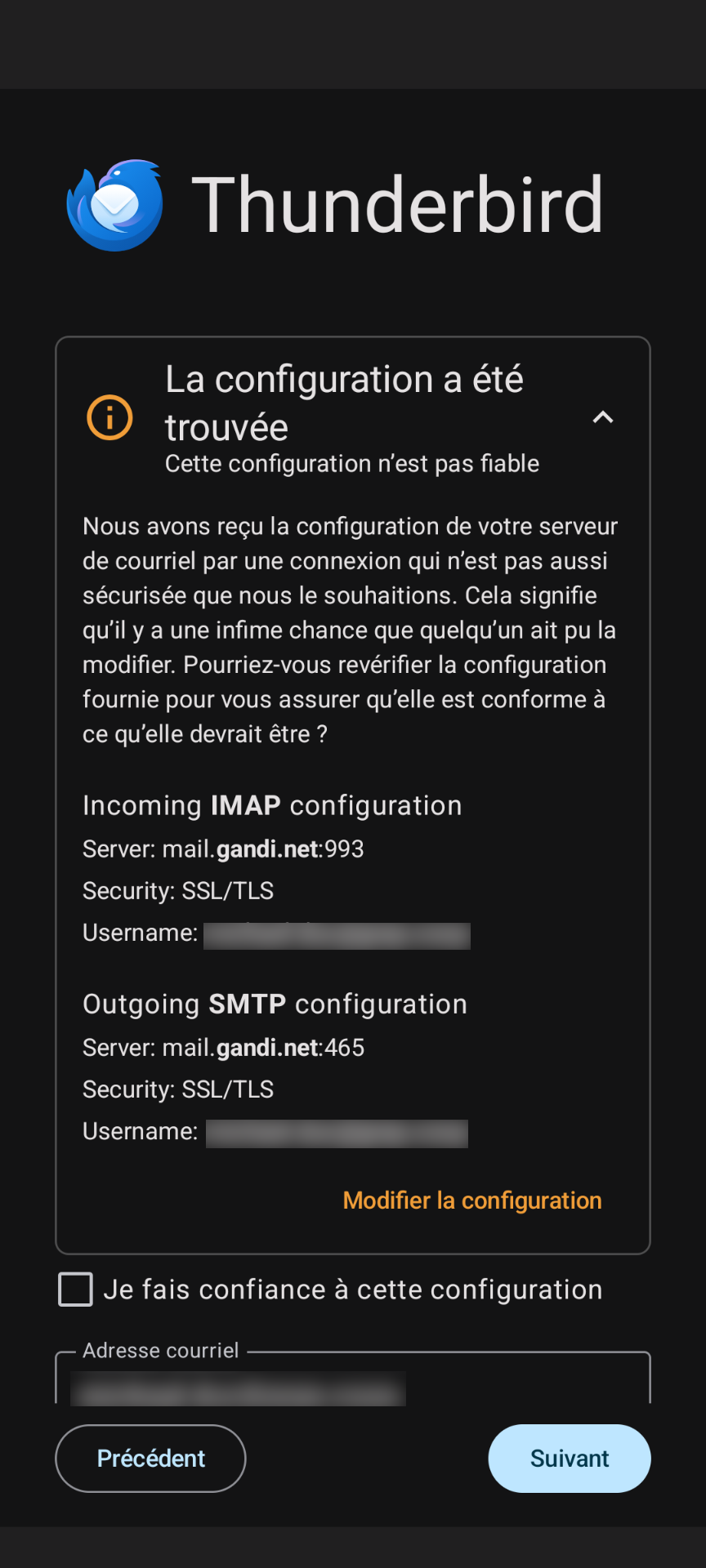
</td></tr><tr><td>#### Rentrer votre adresse de courriel, à l'écran suivant Thunderbird attend une confirmation de la configuration.   
  
Si la configuration est reconnue, ne rien modifier en rentrer son mot de passe.  
  
Si la configuration n'est pas reconnu, se référer à la configuration des serveurs entrants et sortants sur Thunderbird sur son son ordinateur.

###   


</td><td>[![tb2.png](https://librairie.grap.coop/uploads/images/gallery/2025-03/scaled-1680-/tb2.png)](https://librairie.grap.coop/uploads/images/gallery/2025-03/tb2.png)

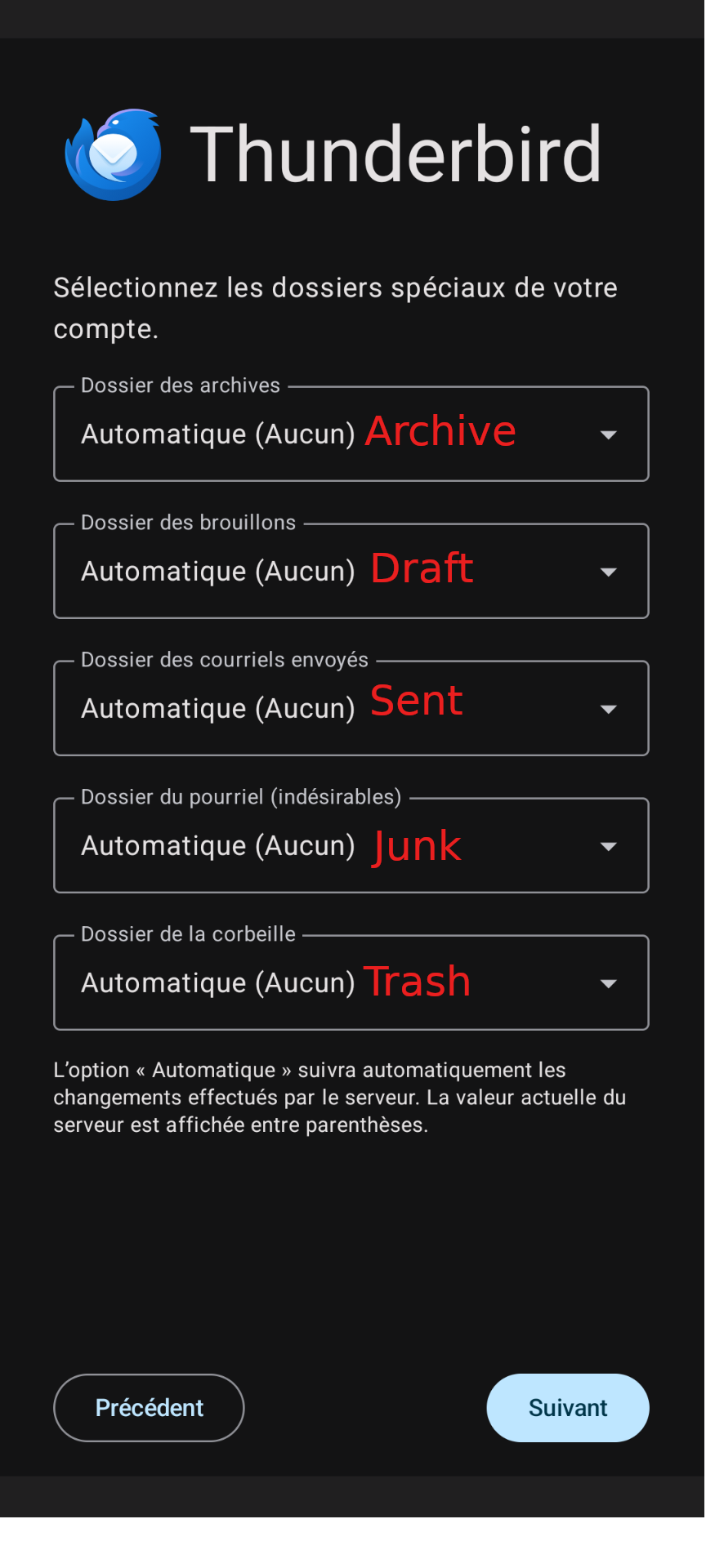
</td></tr><tr><td>#### Sélectionner les dossiers correspondants aux intitulés

</td><td>[![tb3.png](https://librairie.grap.coop/uploads/images/gallery/2025-03/scaled-1680-/tb3.png)](https://librairie.grap.coop/uploads/images/gallery/2025-03/tb3.png)

</td></tr></tbody></table>

#### Et voilà. Vos comptes de messagerie sont maintenant importés et vos mails disponibles sur votre téléphone Android !